Checking the parameters of your watch is a crucial part of troubleshooting problems, helping you gather different information about your smartwatch. Parameters can display the ID, IMEI, IP address, and other information of your watch. Please refer to the following steps to check this information.
Step 1. Insert a SIM card in the slot of the watch, and you need to know the number of the SIM card.
Step 2. Send the text message (command) "pw,123456,ts#” to the watch, and you will receive a message including the parameters of the watch a few minutes later.
Note: Please make sure the command is correct and do not add a Space in the command.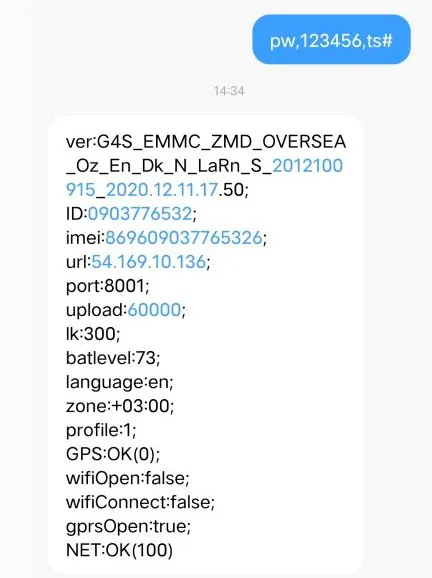
Most of the problems that occur with the watch are SIM card problems. Make sure the SIM card is usable, opening relevant functions and services before you insert it in the watch’s slot.
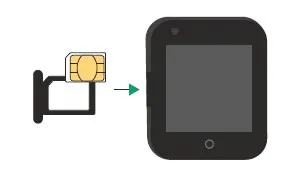
Method 2: Reboot the watch.
The watch needs to be shut down during the operation of inserting the SIM card. If you skip this procedure, you need to reboot your watch. The watch will work well after the reboot.
Method 3: Go to an open area.
Poor signal is another reason that the watch can’t identify the SIM card. Please go to an open area and see if it works.
Method 4: Check if the watch supports this kind of SIM card. A 2G watch needs a 2G SIM card, while a 4G watch needs a SIM card that supports 4G GPRS.
Method 5: Change a SIM card.
If the methods mentioned above are not working, you can try changing to another SIM card.
Method 1: Make sure the SIM card of the watch has access to the SMS function; if not, please contact the SIM card operator to open it.
Method 2: Make sure the command you send to the watch is correct. Please do not add Spaces in the command.
Method 3: You can change to another phone or another SIM card to send the command.A 4G smart watch can change the time in settings. Go to settings>More>Date & time settings, then you can change the time and date. As for the 2G smart watch, you are not able to change the time on the watch. However, both the 2G watch and 4G watch support the time change on the Setracker application.
Using Setracker or Setracker2 can help you control or monitor the smart watch more easily. Moreover, there are many functions in the Setracker waiting for you to explore. However, during usage, you may encounter some issues. Here are some common problems and the methods to fix them.
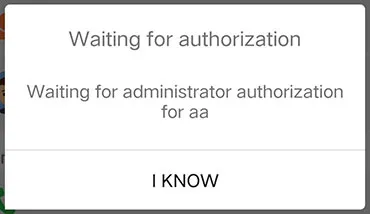
Method 1: Unbind the first device
If you want to change the authorization device, you can unbind the watch from the first device and bind it again to another device.
Method 2: Contact us
If you did not bind the watch before or you had already unbound the first device, but the authorization window still appears, please contact us to help you reset the watch. We need you to offer the IMEI number of your watch, which you can check by sending a text message to the watch.
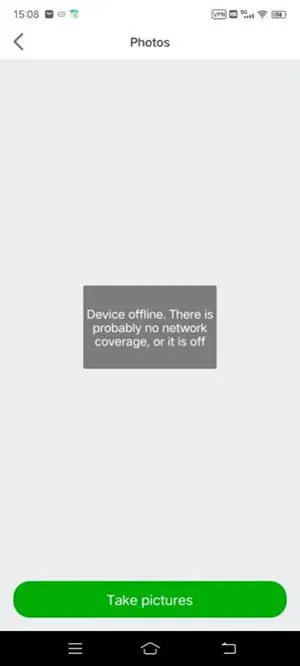
Step 1: Check if the watch lost signal. Please try again in open areas.
Step 2: Check if the SIM card is in the debts and if you have opened the data roaming service. You can contact the SIM card operator for help.
Step 3: Check if the IMEI number is correct.
Make sure the IMEI number from the parameter is the same as the number displayed on the underside of the watch. If the two numbers are different, you need to send a message to the watch to change the IMEI number. The message should be like this:”pw,123456,IMEI,xxxxxxxxxxxxxxx#” (x represents the number of 15-bit IMEI number displayed on the underside of the watch).
Note: Please make sure the command is typed correctly and do not add Spaces in the command.
Step 4: Rebind the watch.
You can unbind the watch on the APP and rebind it to see if it works.
Step 5: Check the IP address from the parameter and make sure the area you choose when you register a Setracker account is right. The IP address is the URL number plus the port number. If your area is wrong, please sign up for a new account and choose the right Region according to the IP address.
|
Region:
|
IP address:
|
|
Hong Kong
|
47.91.138.192,8001#
|
|
Europe and Africa
|
52.28.132.157,8001#
|
|
52.28.132.157,9003#
|
|
|
Asia and Australia
|
54.169.10.136,8001#
|
|
54.169.10.136,9003#
|
|
|
North America
|
54.153.6.9,8001#
|
|
South America
|
54.207.93.14,8001#
|
Step 6: Set up the APN of the watch.
In some countries, customers need to set up the APN of the watch to let it access the GPRS network. Contact to SIM card operator to get the APN-specific information. The APN name, user name, password, MCC, and MNC are necessary. You should send this command message to your watch: "pw,123456,apn,APN name,user name,password,MCCMNC#”. For example, if your APN name is wap.tmobil.cl, user name is wap, password is wap, MCC is 73,0 and MNC is 02, the command should be like this: "pw,123456,apn, wap.tmobil.cl,wap,wap,73002#”. If the user name and password are null, the command should be like this: ”pw,123456,apn,wap.tmobil.cl,,,73002#”. The APN will be set successfully after you receive a reply from your watch. Reboot the watch and try some functions with the Setracker application.
Step 7: Change another SIM card
You can change another SIM card to see if the issue is fixed.
Step 8: Contact us
If the aforementioned methods are not suitable for your situation, please contact us.